
.jpg)

.png)
A mind map is rarely finished the moment it is generated. You read through it and notice that one branch needs more detail, two sections belong together, or the whole thing would be more useful as a study guide than a summary.
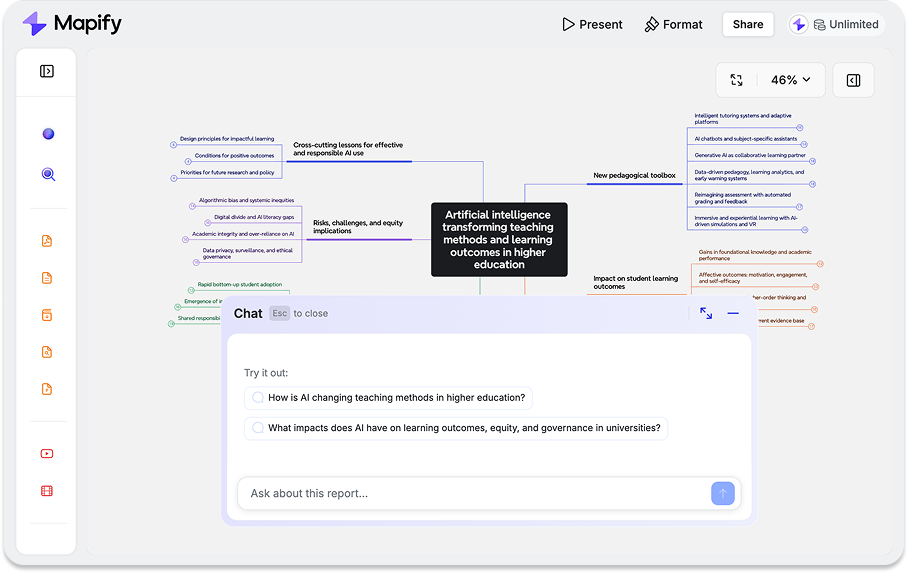
Until now, Mapify Chat was mainly a place to ask follow-up questions about the map in front of you. It could explain a difficult idea, explore a related question, or search the web for more context. Those capabilities are still here, but the new Mapify Chat goes much further: it can now help you work on the mind map itself.
Ask it to shorten a crowded branch, fill in a gap, translate the content, or reorganize the structure for a different purpose. Instead of taking an answer from Chat and manually rebuilding it in the map, you can keep the conversation and the editing process in the same workspace.
Instantly turn your content into mind maps with AI
Get Started Now💬 A Chat That Works on Your Mind Map, Not Just Around It
The difference becomes clear as soon as you want to change something.
Suppose you have turned a long report into a mind map. The first draft captures the main points, but the market analysis is too brief and the recommendations are scattered across several branches. You can tell Chat, “Expand the market analysis and group the recommendations by priority.” It can help add the missing depth and reshape the relevant parts of the map around that goal.
The request does not have to be technical. In fact, it is usually better to describe the result you want in the same way you would explain it to a collaborator: “Make this easier for a beginner,” “Remove repeated points,” or “Turn this into a presentation outline.” Mapify Chat reads the current map, considers the request in context, and helps make the corresponding changes.
This is what makes the upgrade feel less like a larger chat box and more like an AI mind map assistant. Chat is no longer limited to answering questions beside your work. It can take part in shaping the work.
🧠 Keep Developing the First Draft
Generating a mind map is often the beginning of the thinking process. Once the structure is visible, you can see what is missing and decide what the information should become.
For a student, that might mean turning lecture notes into an exam review guide, simplifying a technical branch, or adding examples to a concept that still feels abstract. A researcher might reorganize findings by argument rather than by source, then expand one section with supporting evidence. A creator could start with a loose brainstorm and ask Chat to reshape it into a blog outline, campaign plan, or video structure.
These are not simply requests for more text. Each one changes how the information is meant to be used. The new Mapify Chat can help develop the existing map without forcing you to regenerate everything whenever one part needs attention.
It can also help when the problem is too much information rather than too little. If a map has become dense or repetitive, ask Chat to make it more concise, merge overlapping ideas, or reduce the number of levels while keeping the main message. When the content is sound but the structure is not, you can ask it to regroup branches by theme, timeline, audience, or priority.
🌐 Translate and Rewrite Without Leaving the Map
Language is another part of the same editing process. You may need to translate an entire map, rewrite one branch for a different audience, or simplify specialist language before sharing the result with a team.
Mapify Chat can help with all of these tasks in place. A prompt such as “Translate this map into English and keep the original structure” gives it both an action and a constraint. You could also ask it to make a section more concise, explain it for beginners, or adapt a research map into a clearer client-facing outline.
AI-generated translations and rewrites are still worth reviewing when wording or factual precision matters. But being able to create and refine that first version inside the map removes several steps from a multilingual workflow.
🔎 Bring in More Context When You Need It
Sometimes the map already contains everything you need. At other times, a question leads beyond the original source.
Mapify Chat can use web search when a request calls for newer information, additional examples, or background context. If you are mapping a fast-moving topic, for instance, you can ask it to explore recent developments and use the findings to help update a relevant branch. When you are working from an uploaded document, Chat can also refer back to the source as it helps you understand or refine the map.
That combination matters because research rarely happens in a straight line. You summarize a source, notice a gap, look for context, and then adjust the structure as your understanding changes. The upgraded Chat keeps more of that process connected to the mind map instead of splitting it across separate tools and tabs.
⌨️ A More Natural Place to Continue the Conversation
The new Chat input now sits below the mind map, where it is easier to notice while you work. It can expand into a larger conversation panel when you need more room, and quick actions such as adding details, making the map more concise, translating it, or regenerating it are available from the same area.
The new location is a useful interface improvement, but it supports a more important change in the experience: chatting and mind mapping now feel like parts of one workflow. You can begin with a simple adjustment, watch the map evolve, and continue refining it through the conversation.
Not sure what to try first? Start with a real outcome rather than a broad instruction. “Turn this map into a study guide for exam review,” “Reorganize these findings by key argument and evidence,” and “Remove repeated points and keep the key ideas” all give Chat a clear direction. The more specific the intended result, audience, or scope, the more useful the edit is likely to be.
💭 Common Questions About the New Mapify Chat
Is Mapify Chat an AI mind map assistant?
Yes. The upgraded Mapify Chat can help you understand a map and work on it through conversation. That includes editing, expanding, translating, rewriting, and reorganizing its content.
How is it different from the old chat box?
The earlier chat box focused mainly on follow-up questions about the mind map, with web search available when more context was needed. The new version keeps those capabilities and adds the ability to help modify the map itself. It is also easier to find below the mind map and can expand into a larger workspace.
Can I edit a mind map just by chatting?
Yes. You can describe the change you want in everyday language, such as “make this branch shorter” or “reorganize this map for a presentation.” Chat can then help apply that change to the map, so you do not have to move the answer back manually.
When should I use Chat instead of editing manually?
Chat is especially useful when the change involves judgment, such as deciding how to simplify a dense section, expand an incomplete idea, rewrite for an audience, or reorganize several branches. For a small visual adjustment or a single-word correction, manual editing may still be quicker.
What kinds of prompts work best?
Clear prompts with a specific outcome tend to work best. Mention what should change, which part of the map it applies to, and what the result is for. “Add three practical examples under the user research branch” gives Chat more useful direction than “improve this.”
Can Mapify Chat use current information?
Yes. When relevant, Chat can search the web for more recent context, examples, or developments. As with any web-based research, review important information and sources before relying on it for high-stakes work.
✨ Give Your First Draft Somewhere to Go
Open a mind map in Mapify and ask Chat to improve one part of it. Add the detail that was missing, make a complex branch easier to follow, translate the content for someone else, or reshape the map around what you need to do next.
The new Mapify Chat is built for the work that begins after a mind map is generated. Your first draft gives you a structure. Your AI mind map assistant helps you keep thinking with it.
Instantly turn your content into mind maps with AI
Get Started Now


.png)