
Most real work and study tasks don’t live in a single file. You might have a PDF report, a slide deck, meeting notes, and an Excel sheet, all covering the same topic. Multi-document chat lets you ask one question across all of them and get one structured answer, instead of summarizing each file separately and stitching results together yourself.
In this guide, you’ll learn what “chat with multiple documents” really means, when it’s worth using, how to do it step by step, and a set of copy-paste prompts that help you get clear, structured results.
What does “chat with multiple documents” mean?
“Chat with multiple documents” means you upload more than one file into the same AI conversation so the model can:
- answer questions using information across all files
- summarize multiple files into one coherent output
- compare sources, spot differences, and identify gaps
- extract specific items (requirements, risks, action items) from across documents
- organize the outcome into a clear structure you can reuse
The key difference from “summarize each file” is synthesis. You’re not looking for five separate summaries. You’re asking for one answer that integrates what’s spread across multiple documents.
Instantly turn your content into mind maps with AI
Get Started NowWhen should you use multi-document chat?
Multi-document chat is most useful when you need to do at least one of these:
- Create one brief from many sources Turn several attachments into a single project brief, study guide, or executive summary.
- Compare versions or alternatives See what changed between v1 and v2, or compare proposal A vs proposal B.
- Extract the same type of info from different files Pull out requirements, risks, pricing, or key conclusions across documents.
- Build a structured knowledge framework Transform material into an outline or mind map that’s easy to learn and review.
- Turn discussion into execution Convert meeting notes plus follow-up messages into clear actions, owners, and deadlines.
If your task is purely “understand one PDF quickly,” a single-document flow is often enough. When the task is about synthesis, comparison, or extraction across sources, multi-document chat is the right tool.
What file types work best (and how to prepare them)?
Best combinations (real-world stacks)
Here are common “document stacks” that work especially well:
- Study stack: slides + reading + your notes
- Project stack: PRD + specs + meeting notes
- Decision stack: proposal A + proposal B + pricing sheet
- Policy stack: policy doc + addendum + change log
- Research stack: paper 1 + paper 2 + your summary notes
- Operations stack: weekly update + backlog export + status spreadsheet
Step-by-step: how to chat with multiple documents
If you want a practical workflow for multi-document Q&A, Mapify Ask Anything is built for exactly this. You can ask AI questions with or without files, then attach multiple documents and images whenever you need more context. Mapify responds with a structured answer, prompts quick clarifying choices when your request is ambiguous, and helps you turn results into an editable mind map you can export to formats like PDF, image, Markdown, XMind, or PowerPoint.
If you want a deeper report, Mapify also offers Deep Research to deliver a professional report and mind map with cited sources—start with a simple question.
Instantly turn your content into mind maps with AI
Get Started NowStep 1: Ask a question with files (or without)
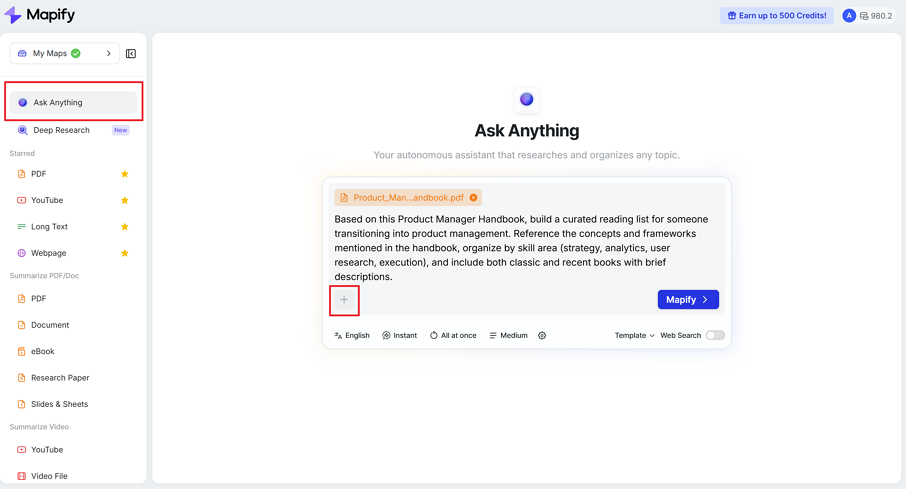
Launch Mapify after you sign up for free. And then you can find Ask Anything tab from the left panel. Click on the + to upload files if you have, and give the prompt. Click on the Mapify button to continue.
Example prompts:
- “I need a project brief for a kickoff meeting. Use these files as context. Output as an outline with sections.”
- “I need a study guide from these slides and readings. Output as chapters with key concepts.”
Step 2: Refine answers with follow-ups
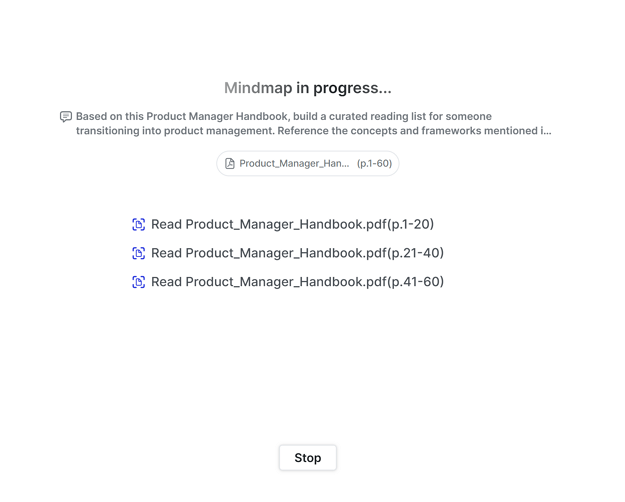
Mapify will generate the answers according to your prompt. It will ask you give more instructure if you haven't tell it the clear prompt at the beginning.
Step 3: Map It and Export
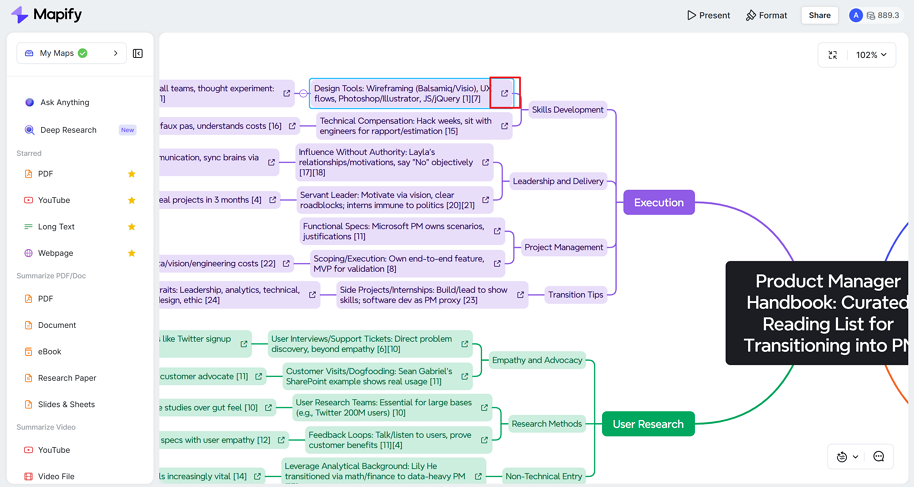
Mapify will generate an editable mind map with traceable sources soon. You can click on the icons to jump to the source page of the original file. Edit it with more details, and then export to any format you want. You can also share it with others via a link.
15 prompts that work for multi-document chat
Copy and paste these prompts, then customize the bracketed parts. They’re designed to cover the most common “ask AI” tasks: summarize documents, compare files, extract key points, and organize information into structure.
A) Summarize across all files
1) Executive summary in bullets “Summarize all uploaded files into 10 bullet points. Prioritize decisions, key claims, and actionable takeaways.”
2) Structured outline “Create a structured outline from all uploaded files. Use clear section headings and list key points under each section.”
3) Topic-only summary “Summarize only the parts related to [topic] across all files. Ignore everything else. Output as bullets.”
B) Compare documents
4) Differences by topic “Compare file A and file B. List differences by topic, and explain why each difference matters.”
5) Version change log “What changed between v1 and v2? Create a change log grouped by sections.”
6) Contradictions and conflicts “Identify any contradictions across the uploaded sources. For each conflict, show both sides and what additional info would resolve it.”
7) Evidence by claim “Group the main claims into a list. For each claim, show which file supports it. Output as a table.”
C) Extract specific information
8) Action items checklist “Extract action items across all files. Include owner, deadline, and next step if mentioned. Output as a checklist.”
9) Requirements and constraints “Extract requirements and constraints across the files. Group them by category (functional, non-functional, timeline, legal).”
10) Risks, assumptions, questions “Create a list of risks, assumptions, and open questions across all sources. Prioritize the top 10.”
11) Key terms and definitions “Extract the key terms used across these files. Provide a unified definition for each term and note any differences in wording.”
D) Turn it into a reusable output
12) Study guide “Turn these files into a study guide with chapters. For each chapter include key concepts, definitions, and 2–3 quick checks.”
13) Project brief “Create a project brief using these files: goal, scope, stakeholders, timeline, risks, dependencies, next steps.”
14) Slide outline “Create a slide outline for an 8-slide deck based on these files. Provide slide titles and 3–5 bullets per slide.”
15) Mind map structure “Create a mind map structure with 3–4 levels of depth from these files. Start with the main themes, then subtopics, then details.”
FAQ
Can I chat with multiple PDFs at once?
Yes. Multi-document chat works especially well for multiple PDFs, and you can also mix PDFs with other document types like slides, docs, spreadsheets, and images.
Can I summarize multiple documents into one summary?
Yes. Ask for a single summary “across all uploaded files,” and specify the output format (bullets, outline, or brief) so it’s easy to reuse.
How do I get a better comparison between two files?
Name the files clearly, tell the AI what to compare (pricing, scope, risks, timeline), and ask for differences “by topic” so the output is structured.
What’s the best output format for multi-document chat?
For most tasks, start with an outline or bullet summary. If you want something you can edit, present, or study, request a mind map structure or a slide outline.
Wrap-up
Multi-document chat is best when your real task is synthesis, comparison, or extraction across sources. Start with a goal, ask for a structure, iterate with follow-ups, and use prompts that force clarity. Once you do that, you’ll spend less time stitching summaries together and more time actually learning, deciding, or shipping work.
Instantly turn your content into mind maps with AI
Get Started Now

.png)